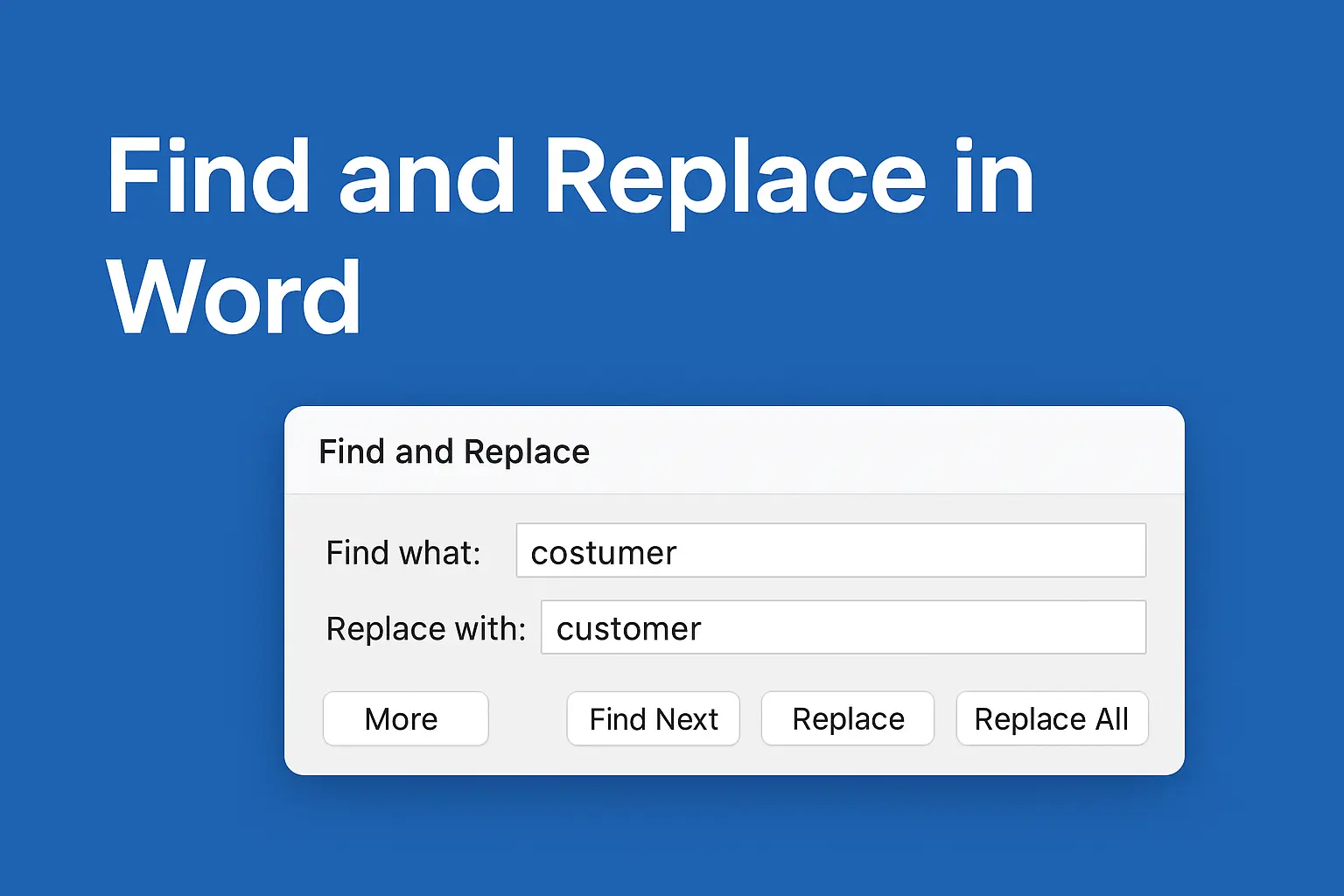

When you work with Microsoft Word, there are times when you have to make changes across a long document. Imagine you wrote a 40-page report and suddenly realize the client’s name is spelled incorrectly throughout. Or maybe you used the word “costumer” instead of “customer” dozens of times.
Manually scrolling through each page to fix errors is time-consuming and stressful. That’s where Find and Replace in Word comes in.
This feature allows you to quickly locate a word, phrase, number, or formatting element in your document and replace it with something else—all in seconds.
In this guide, we’ll break down:
- What Find and Replace is in Word
- Step-by-step instructions on how to use it
- Practical examples from real work situations
- Advanced options you might not know about
- Common mistakes and how to avoid them
- Why mastering this tool saves time and improves accuracy
By the end, you’ll know exactly how to use Find and Replace like a pro.
What is Find and Replace in Word?
Microsoft Word has a built-in feature called Find and Replace.
- Find helps you locate specific words, phrases, numbers, or even formatting in your document.
- Replace lets you swap those words or formats with something else.
For example:
- Find: “2019”
- Replace: “2025”
With one click, Word updates every “2019” in your file.
This function works whether you are editing a short letter, a college essay, a legal contract, or a company report.
👉 Microsoft Support: Find and Replace text
How to Find and Replace in Word
Let’s go through the process step by step.
Step 1: Open the Find and Replace Tool
There are three ways to access it:
- Keyboard Shortcut: Press Ctrl + H (Windows) or Command + H (Mac).
- Ribbon Menu: Go to the Home tab → Editing group → click Replace.
- Navigation Pane: Use Ctrl + F (or Command + F) to open Find, then click on the Replace tab.
Step 2: Enter the Text You Want to Find
- In the Find what box, type the word or phrase you want to search for.
Example: Type “costumer”.
Step 3: Enter the Replacement Text
- In the Replace with box, type the correct word or phrase.
Example: Type “customer”.
Step 4: Choose How to Replace
- Click Find Next to see the first match.
- Then choose Replace (to change only this instance) or Replace All (to change every instance at once).
Tip: Always try “Replace” first before using “Replace All,” especially in large documents.
Case Study: Correcting a Company Report
Let’s use a real example to show why this tool matters.
Imagine you’re editing a company report for a client called BrightTech Solutions. In the 50-page draft, you realize the client’s name is written incorrectly as Bright Technologies in several sections.
Instead of manually scanning through the entire report, you:
- Press Ctrl + H.
- Type “Bright Technologies” in the Find what box.
- Type “BrightTech Solutions” in the Replace with box.
- Click Replace All.
In seconds, every mistake is corrected, and the document looks professional.
This is the power of Find and Replace.
Different Ways to Use Find and Replace
Many people think it only works for words. In reality, you can use it for much more.
1. Replace Numbers
If your company changed its pricing from $199 to $249, you don’t have to update each instance manually.
- Find: “199”
- Replace: “249”
2. Replace Formatting
Did you type all your headings in bold, but your manager wants them in italics?
- Open Find and Replace
- Click More → Format → Font
- Choose Bold under Find
- Choose Italic under Replace
- Click Replace All
Word will automatically update formatting across the file.
3. Replace Special Characters
You can replace things like line breaks, paragraph marks, tabs, or extra spaces.
For example:
- To replace double spaces with single spaces:
- Find: (press spacebar twice)
- Replace: (press spacebar once)
4. Match Case or Whole Words Only
Sometimes you want to be very specific.
- Match case means Word will only find text with exact uppercase and lowercase letters.
Example: Searching for “Word” will not find “word.” - Find whole words only prevents replacing part of a larger word.
Example: Finding “in” won’t highlight words like “within.”
Advanced Options You Should Know
If you click on More in the Find and Replace window, you’ll see additional settings.
- Match Prefix/Suffix: Useful for languages with prefixes and suffixes.
- Use Wildcards: Helps when searching for patterns instead of exact words. For example, typing
gr[ae]ywill find both gray and grey. - Ignore punctuation and spaces: Useful when scanning through large text blocks.
👉 Learn more about advanced Find and Replace options in Word
Common Mistakes to Avoid
- Using Replace All Too Quickly
- If you replace “cat” with “dog,” Word will also change words like “category” into “dogegory.” Always double-check.
- Forgetting About Case Sensitivity
- Replacing “apple” might miss “Apple” if you don’t select Match case.
- Not Checking Formatting Replacements
- When replacing fonts or styles, review the document to make sure nothing looks strange.
- Replacing Hidden Text
- Sometimes Word documents have headers, footers, or comments with text you didn’t notice. Check those areas too.
Why Find and Replace Improves Productivity
Using this feature isn’t just about convenience—it can save hours of work and reduce human error.
- Writers and Editors: Fix repeated spelling errors across long manuscripts.
- Students: Update terms in essays without rewriting entire paragraphs.
- Business Teams: Update company names, policies, or numbers in proposals.
- Legal Documents: Ensure consistent use of terminology.
Case in point: A legal editor once shared that replacing one wrong contract clause manually took almost 2 hours. With Find and Replace, the same work took less than 3 minutes.
Step-by-Step Example: From Start to Finish
Let’s walk through a quick example for clarity.
Scenario: A teacher creates a lesson plan and writes “exam” 120 times. Later, she decides to change it to “assessment.”
Steps:
- Press Ctrl + H.
- In Find what, type “exam.”
- In Replace with, type “assessment.”
- Click Replace All.
- Word confirms: “120 replacements made.”
Done in under 10 seconds.
Related Features You Should Explore
- Navigation Pane (Ctrl + F) – lets you see all search results in a panel for quick review.
- Go To (Ctrl + G) – quickly jump to specific pages, sections, or headings.
- Track Changes + Find and Replace – combine these to review edits more safely.
Frequently Asked Questions (FAQ)
Q: How do I find and replace words in Word without changing similar words?
A: Use the Find whole words only option. This prevents partial matches.
Q: Can I undo a Replace All action?
A: Yes. Press Ctrl + Z immediately after replacing to undo.
Q: Does Find and Replace work in headers and footers?
A: Yes, but you need to open them first to ensure Word scans those sections.
Q: Can I replace text in multiple Word documents at once?
A: Not directly in Word. But you can use batch-processing tools or macros.
External Resources for Deeper Learning
Conclusion
The Find and Replace feature in Microsoft Word is more than just a tool—it’s a productivity booster that saves time, reduces errors, and helps you keep your work professional.
Whether you’re a student fixing repeated terms in an essay, a business professional updating client names, or an editor polishing a manuscript, this function is essential.
Next time you need to make changes across a long document, remember: Ctrl + H is your best friend.